Heatmap settings
Heatmap settings
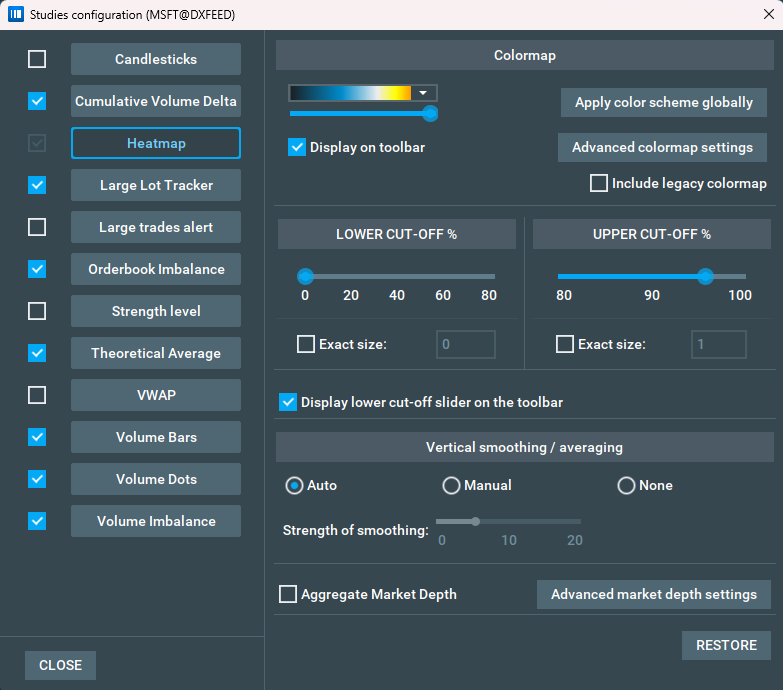
You can configure the heatmap in the relevant section of the studies configuration.
NOTE: All the settings in this section are per instrument, so you’re able to set each instrument in a different way. Also, the most recent settings applied will be used for future instruments you subscribe to.
Different Colour Maps
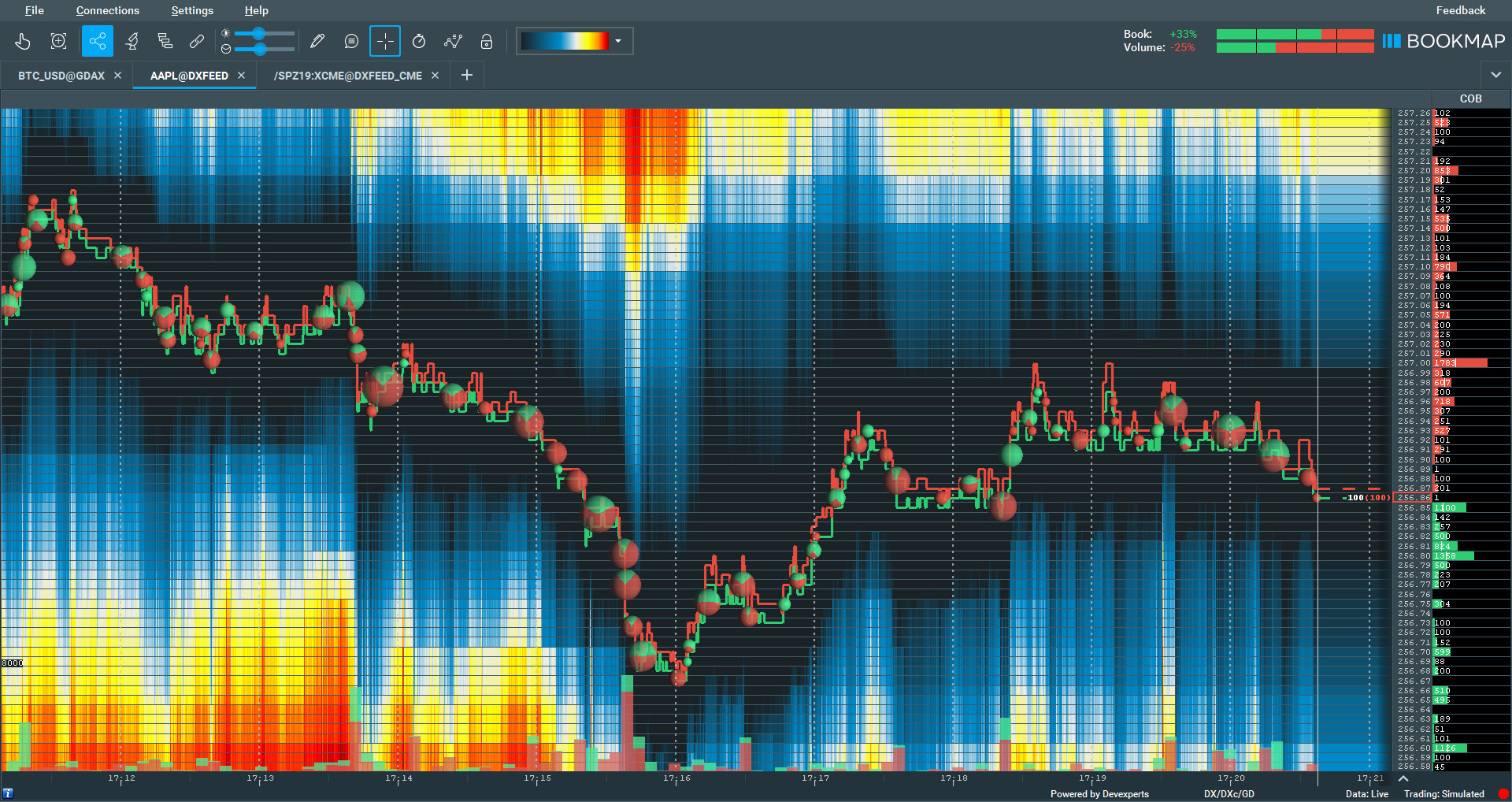
Bookmap provides several heatmap colour scales. While the default colour map ranges from black through blue, yellow, orange, and red (the most common one), users can still choose two other colour maps.
By enabling the relevant check box, two legacy grayscale heatmaps will become available in the dropdown. If you don’t change the colour scale often you can remove this drop down from the toolbar by disabling the check box of the same name.
Dimming
Dimming makes the heatmap darker, to the point where all price lines become black. It´s the only heatmap setting that is enabled from the toolbar and not from the heatmap section of the Studies configuraiton.
By clicking the Apply color scheme globally button in the top right, you will then apply the color scale and dimming setting to all open instruments.
Upper And Lower Cut Off
For more heatmap display customization, users can control upper and lower cut off and also define the degree of discernibility of price levels with a relatively large number of pending orders.
Upper and lower cut off appear in the Heatmap settings window that can be opened either from the studies panel or by clicking the contrast black cut-off slider above the chart.
The cut-off values define the sizes which will be displayed with a solid colour reserved for representing the highest (and lowest) liquidity sizes on the order book (e.g. white or black in case of a grayscale heatmap).
The values of the cutoff can be controlled by either a percentage slider or by manually entering an exact number of contracts.
When you enter an exact size of contracts, Bookmap will assign a solid colour to any price level with an equal or greater (or smaller) number of pending contracts, while price levels with smaller (or bigger) sizes will be assigned with varying colour shades according to their relative size.
If you use the percentage slider instead, Bookmap will assign a solid colour to any value at or above (or below) the percentile you selected on the slider (e.g. if 95% is selected for the upper cutoff in a grayscale heatmap, Bookmap will assign a white colour to the top 5% order sizes in the order book; if 5% is set for the lower cutoff, Bookmap will assign a black colour to the bottom 5% order sizes in the order book).
NOTE: while the exact size is an absolute value, the sizes represented by percentile values keep changing as the order book changes. The lower cut off slider can also be placed on the toolbar to save the need for using the heatmap configuration window. Tick Display lower cutoff on the toolbar of the heatmap configuration window to display the slider on the toolbar.
Chart Contrast
An internal algorithm automatically adjusts the contrast of the order book heatmap, based on the maximum size of the order book and the distribution of pending orders at different price levels.
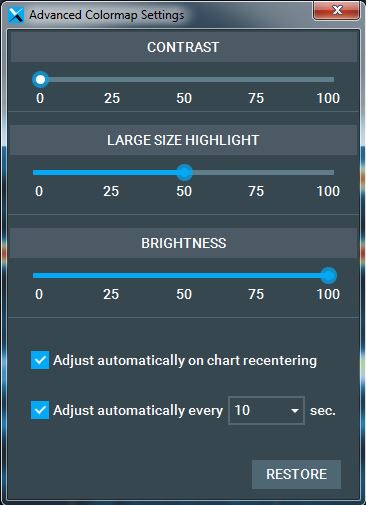
Users can also determine how often Bookmap will adjust the heatmap contrast. It can even be set to adjust at predefined frequencies - and every time the chart recentres.
To control these settings, either:
- click on the contrast slider icon above the chart or
- click on the studies icon (microscope) and then on Heatmap.
Both will open the Heatmap settings window.
Then, from the Heatmap settings window, click on Advanced colour map settings and tick the adjustment options you want to use.
In addition, users can also adjust the contrast and brightness of the display by using the relevant sliders in the Contrast settings window.
The Large Size Highlight Slider
The Large Size Highlight slider, which you can reach from the Advanced colour map setting on the Heatmap settings window, is only relevant for grayscale heatmaps, and controls the range of grey shading assigned to price levels with a relatively larger number of pending orders.
If you’d like to make the differences between these price levels and other levels more distinguishable, use the higher end of the slider. This can help traders put more emphasis and focus on the more liquid levels of the order book.
Heatmap vertical smoothing and other settings
Vertical Smoothing
To enable more flexibility in consuming the heatmap in zoomed out (especially extreme zoom out) views, Bookmap enables users to apply a vertical smoothing to the heatmap. To access the vertical filter options click the Studies icon above the chart and select Heatmap. The vertical filter setting will be in the bottom part of the window.
Choosing Auto will display the heatmap with automatic smoothing based on the zoom level in use. Choosing Manual allows the user to determine the strength of the smoothing effect using the slider. Choosing None will apply no smoothing factor regardless of the zoom level.
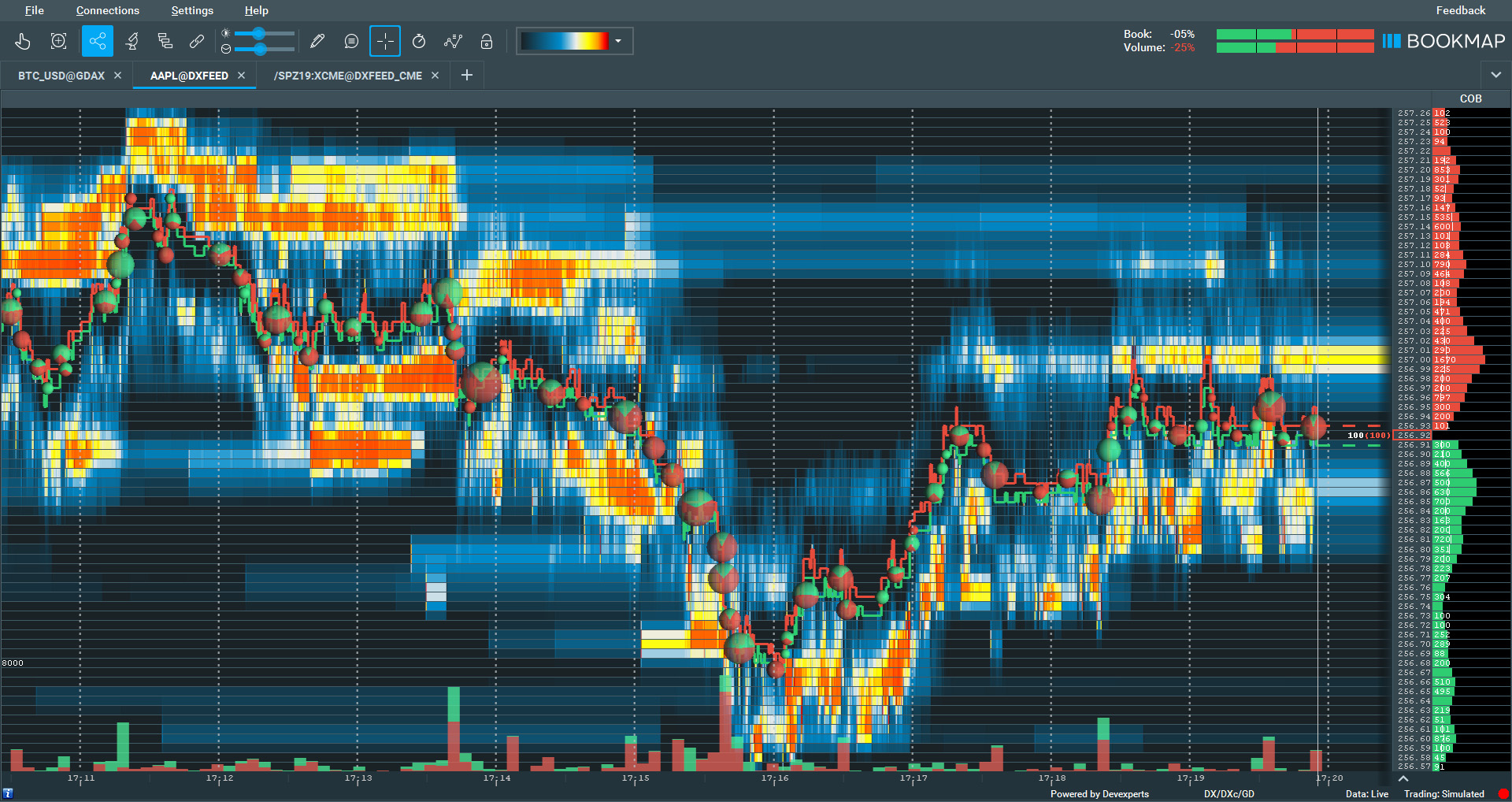
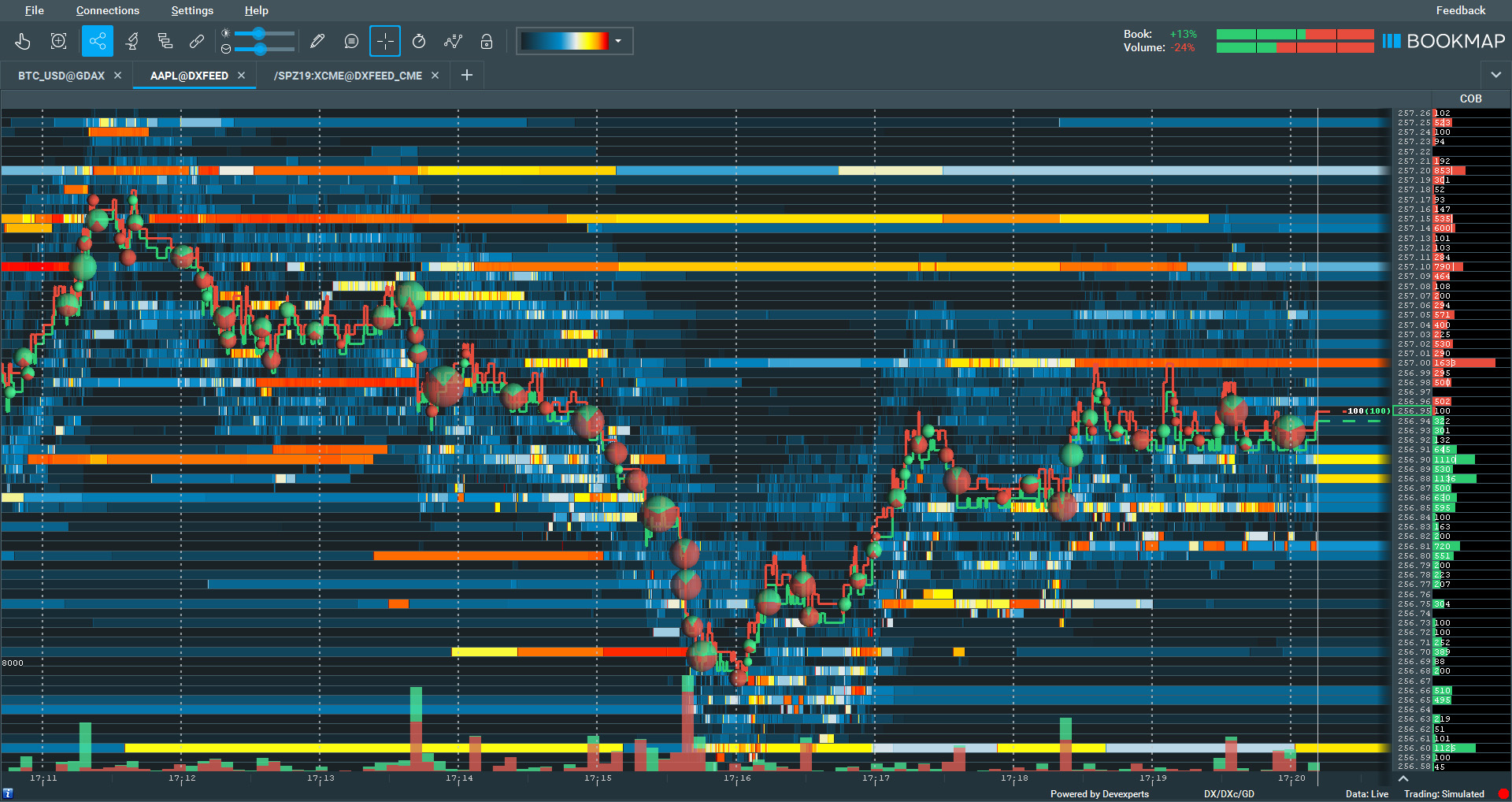
Aggregate Market Depth
Normally, the heatmap will display the size of each price level separately. When checking the Aggregate Market Depth check-box, the heatmap will switch to accumulated display. Each price level will display the aggregate number of pending orders at that price level together with the total number of pending orders at all the preceding price levels.
Advanced market depth settings
This section includes two possible configurations:
- Manual Market Depth allows the user to reduce the number of visible price levels on the heatmap. For instance, the user may wish to follow only 10 levels above or below the BBO even though the data feed supports full depth. To set the lower number of the price range, tick the Override number of market depth price levels box and set the number of desired levels.
- Extended Market Depth is relevant only when using data that does not support full depth (i.e., includes all price levels). In this case, when not all price levels are available, Bookmap will still show price levels that are out of the exchange transmitted range. The values used for these extended levels will be the last transmitted contract sizes for these levels during the session. Obviously, these may not be updated numbers but they still give information about the last reported size. In such a scenario, users may want to reset the out-of-range levels at a preset frequency. Use any of the reset options to zero out the out-of-range levels
Limitations:
In case the exchange does not transmit more than 10 levels, Bookmap keeps records of the order book size at each price level and displays it with the relevant grey or colour shade. Whenever a certain price level goes out of the price range transmitted by the relevant exchange, Bookmap will continue displaying the last transmitted size at the out-of-range price level and will update the size once this price level returns to the transmitted range. It allows traders to estimate market depth even beyond the exchange transmitted range.
NOTE: It is only an estimation (or more accurately, a record of the last transmitted size) of size. Users can override this default behaviour and opt to reset out-of-range levels or only display depth for the active range.
See Heat map Vertical Filter for details.
Depth Reset Configuration
Not all data feeds provide full depth (i.e., unlimited number of price levels). In some cases, the exchanges only transmit data for a limited number of price levels above and below the best ask and best bid. It is referred to as the market depth active range.
The active range varies between providers, exchanges, and symbols. In cases where the data does not include full depth, Bookmap keeps a record of the last update of out-of-range price levels and displays these values on the current order book (COB column) as well as on the heatmap. It allows traders to keep track of the last known size of out-of-range price levels.
By using the Depth reset configuration, traders can control both the calculation of the active range and how long inactive ranges which lack exchange updates are displayed.
- To access the Depth reset configuration, click the studies icon above the chart and select Heatmap. Then click Advanced market depth settings:
- Keep all check boxes unchecked to prevent depth reset. Bookmap will keep displaying the last update of each price level.
- Choose Reset inactive and set the number of minutes for the reset interval. Bookmap will reset price levels out of the active range for which no update was received during the specified number of minutes.
- Choose Reset at the end of the day to reset depth data of the out-of-active-range price levels at the end of the regular session. Note that this option is only available when connecting to a data provider that provides an indication of the end of the trading session. Currently, it applies only when Bookmap is connected to Rithmic.
- Click Reset Now to manually reset price levels that are out of the currently active range.
To override the number of transmitted levels and set it at a lower value, check the Override number of market depth price levels and set a lower number of levels to be considered as the active range. The active range will be marked with two horizontal lines on the COB column.