Candlestick View
Bookmap offers a candlestick view of the price, which can be overlaid on the heatmap view, combining the traditional price view with market depth information. This integrated perspective helps traders familiar with candlesticks and enhances performance through multi-disciplinary analysis.
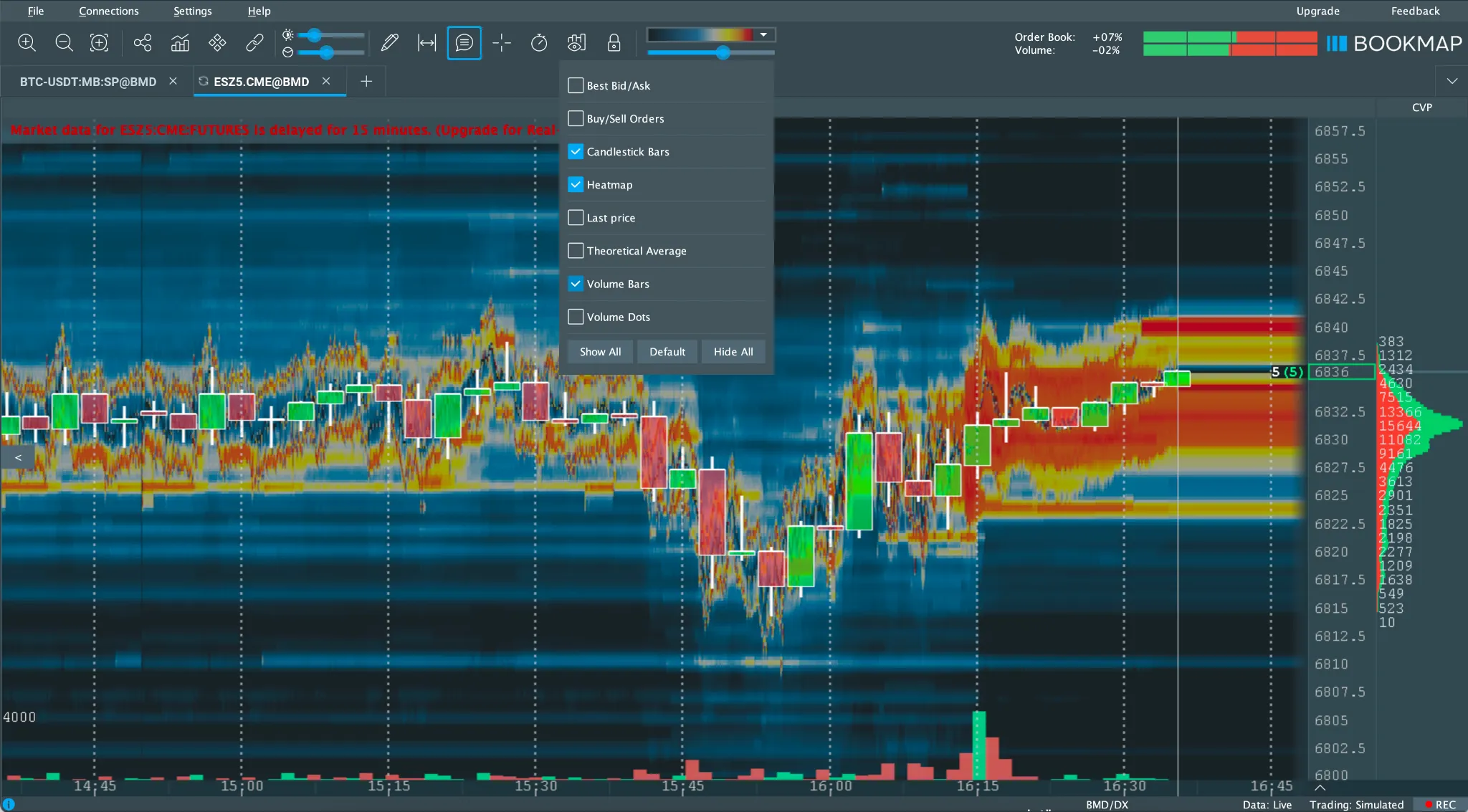
Enabling Candlesticks
To enable candlesticks on the chart, do one of the following:
- Click the Configure Visible Components icon on the toolbar and select Candlesticks from the list.
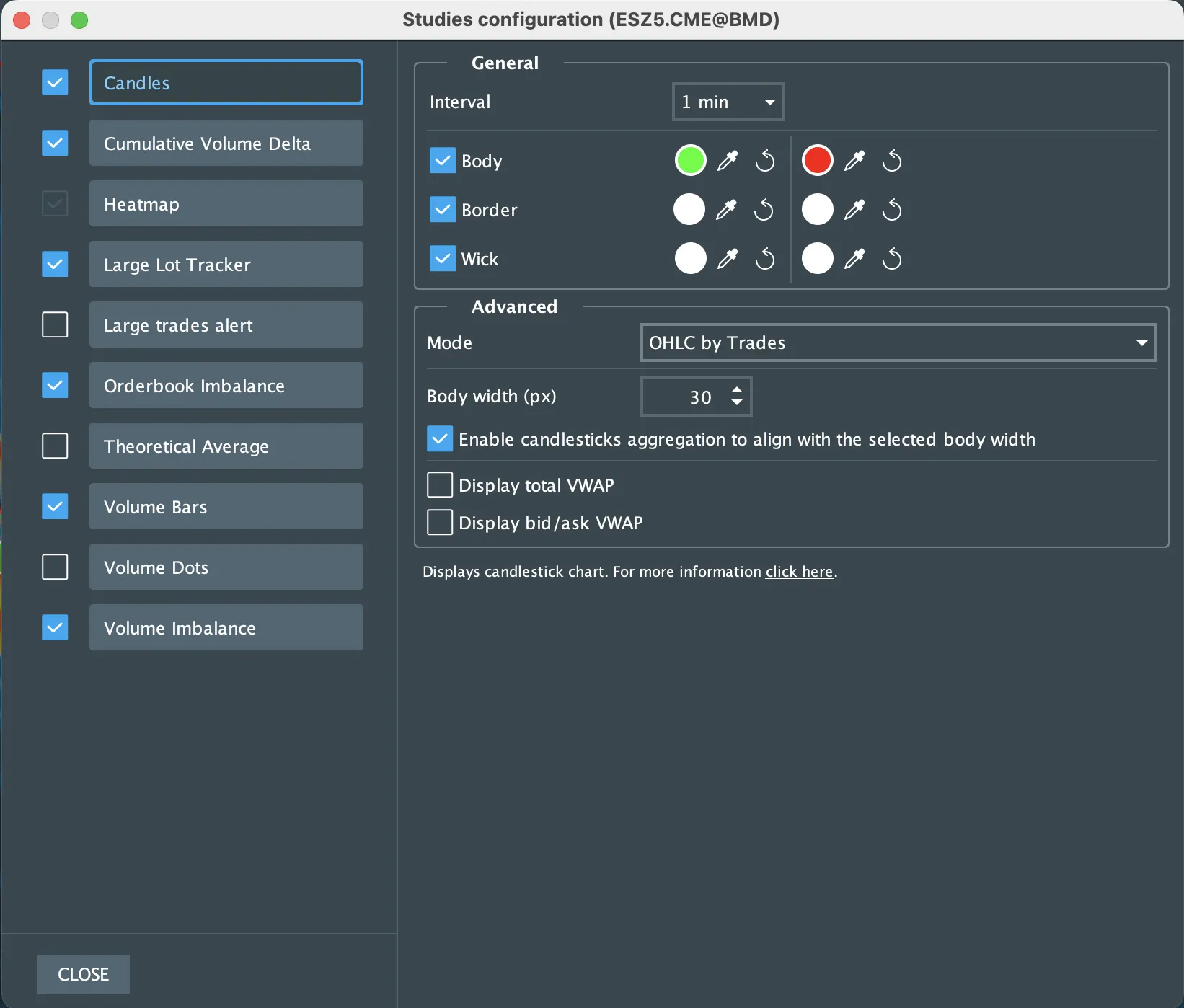
- Click the Studies configuration button on the toolbar to open the Studies window, then enable the Candles checkbox.
Candlestick Settings in the Studies Window
In the Studies configuration window, users can configure how candlesticks are calculated and displayed on the chart. Settings are divided into General and Advanced categories.
General Settings
- Candle Interval: Defines the time or data range represented by each candlestick.
- Color Settings: Users can customize colors separately for:
- Candle body
- Candle border
- Candle wick
Colors can be set independently for the upper (bullish) and lower (bearish) parts of the candle.
Advanced Settings
- Maximum Body Width (px): Sets the maximum width of the candle body in pixels.
- Candlestick Aggregation: When enabled, candles are aggregated based on:
- The selected candle body width
The current chart zoom level
Bookmap automatically aggregates candles as users zoom out or increase the body width to maintain chart readability.
- The selected candle body width
The current chart zoom level
- Mode: Bookmap offers three candlestick modes that define how Open, High, Low, and Close (OHLC) values are calculated:
- OHLC by Trades
All candlestick values (Open, High, Low, and Close) are calculated solely from executed trades. - OC by Trades, "H" by highest Ask, "L" by lowest Bid
Open and Close are calculated from executed trades.
The High is taken from the highest Ask price, and the Low is taken from the lowest Bid price. - OC by Trades, "H" by highest Bid, "L" by lowest Ask
Open and Close are calculated from executed trades.
The High is taken from the highest Bid price, and the Low is taken from the lowest Ask price.
- OHLC by Trades
- Display total VWAP: Enables the display of the volume-weighted average price per candle.
- Display bid/ask VWAP: Displays the volume-weighted average price separately for bid and ask within each candlestick.
Accessing Candlestick Settings from the Chart
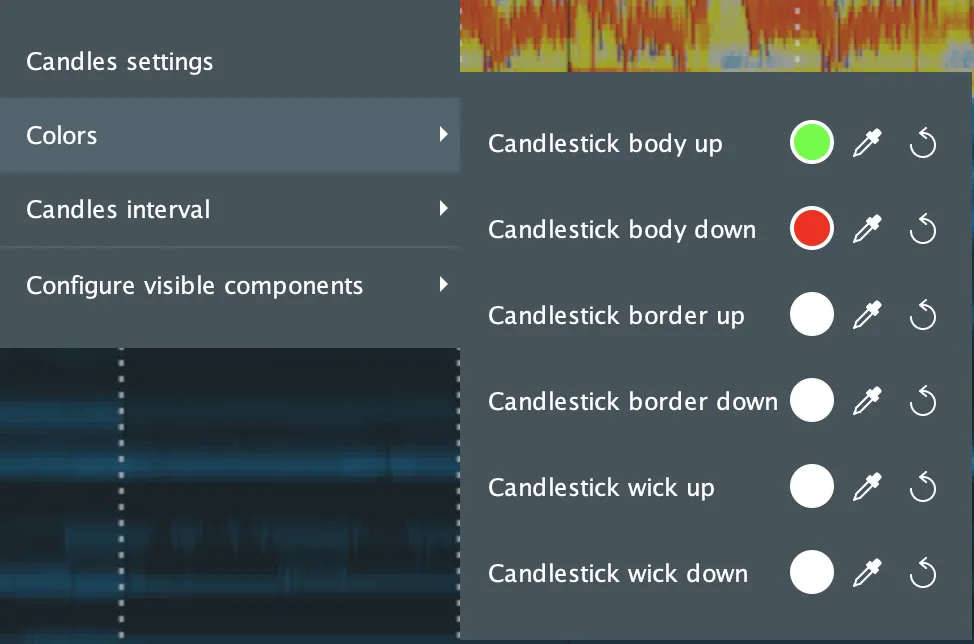
Users can also configure candlesticks directly from the chart. By right-clicking on a candlestick, a context menu appears that allows users to:
- Open the full Candlestick settings window
- Adjust candle colors
- Change the candle interval
- Configure Visible Components
For a deeper understanding of Bookmap candlesticks, watch this tutorial.