Export and Import of Bookmap files
Supported File Types
Bookmap supports importing and exporting several file types that allow users to save and restore their workspace, market data, and orders:
- Bookmap Workspace (
.bmw) - Stores the full application layout and configuration, including heatmap settings, visible chart components, activated add-ons, opened instruments, and other workspace preferences. - Feed Files (
.bmf) - Contain recorded market data for an instrument, including market depth and the Best Bid and Offer (BBO). These files can be used in Replay mode to review and analyze past market activity. - Bookmap Order File (
.bmo) - Stores orders placed by the user and can be exported and later imported, alongside a feed file, to replay trading activity together with the corresponding market data.
Working with Bookmap Workspace Files
Bookmap provides several operations for managing Workspace (.bmw) files, allowing users to create, load, and save their application setup:
- New Workspace - Closes the current workspace and creates a new, empty one. After creating a new workspace, users need to activate connections and subscribe to instruments again.
- Open Workspace - Closes the current workspace and opens the selected workspace file, restoring the saved layout, settings, and instruments.
- Save Workspace - Saves the current workspace to the existing workspace file, updating it with the latest changes.
- Save Workspace As - Saves the current workspace as a new
.bmwfile, allowing users to create a separate copy with a different name or configuration. - Open by Double-Click - Users can also double-click a
.bmwworkspace file, which launches Bookmap (if it is not already running) and opens the selected workspace automatically.
Recording and Exporting Bookmap Feed and Order Files
Bookmap allows users to record and export both market data (feed files) and order data (order files). There are two ways to do this, depending on whether you want to capture data continuously or export a specific time range.
Method 1: Recording via the Recording Pop-Up
Users can record feed and order data via the Recording pop-up, accessible either from the REC button (●) in the bottom-right corner of the application or through File → Record.

In this pop-up, users can select:
- The starting moment of the recording
- The instruments to be recorded
- Whether to record orders (available only in Trading Mode)
- The output folder and file names
Additionally, users can enable automatic feed and order recording each time the application starts.
Method 2: Export via the File Menu
A similar result can be achieved via File → Export. This menu allows users to export feed data and order data separately.
-
Export Feed
Users can select the instruments, output folder, and file name, as well as define both the starting moment and the ending moment of the exported feed file. -
Export Orders
Users can export order data independently by selecting the output folder, file name, and file format.
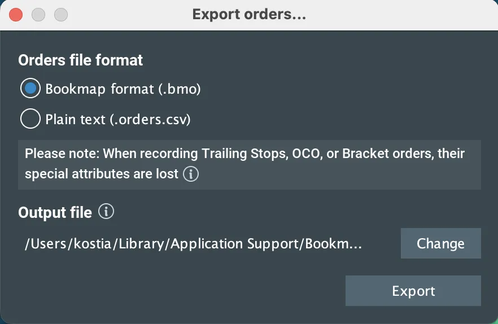
Opening Bookmap Feed Files
Bookmap feed (.bmf) files can be opened only in Replay Mode. After launching the application, click the Open Data Feed button on the start screen and select the desired feed file.
Feed files can also be opened by double-clicking the (.bmf) file, which will start Bookmap and automatically open the file.
Note: Double-clicking a feed file will not work if the application is already running.
If a feed file and an order file share the same name, the order file is automatically opened together with the feed file, with "Allow trading loaded orders" disabled.
Opening Bookmap Order Files
Bookmap order (.bmo) files can be imported via File → Import Orders File and are supported in Trading, Simulation, and Replay modes.
While the import workflow is similar, the available options and behavior depend on the active mode.
Trading Mode
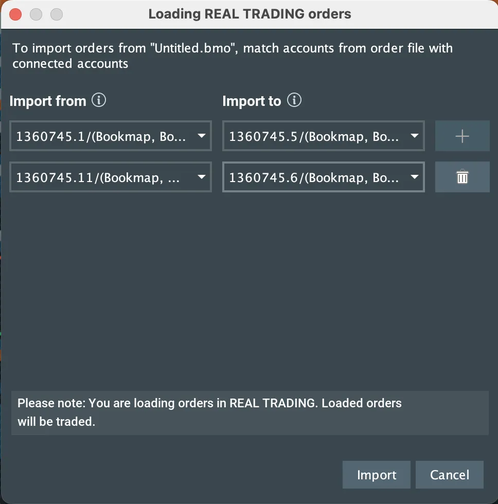
In Trading mode, the import dialog reflects the presence of multiple trading accounts (if available):
- Users can select from which trading account the orders are imported.
- Users can select to which trading account the orders are imported.
This allows orders from a .bmo file to be mapped explicitly between trading accounts.
Simulation Mode
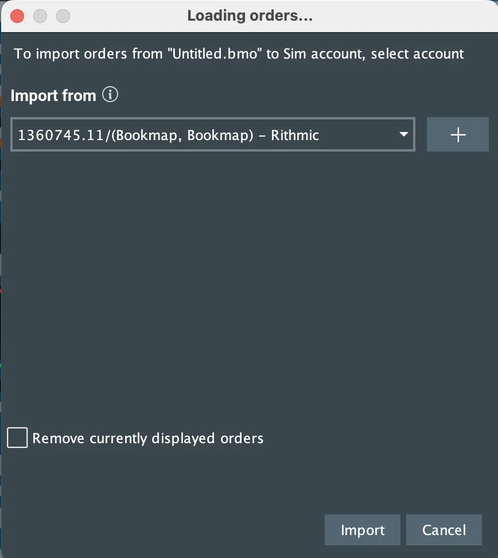
In Simulation mode, imported orders are applied to the simulation account:
- Users can select one or more source accounts. Orders from all selected accounts are imported into the same simulation account.
- Users can choose to remove currently displayed orders before importing.
Replay Mode
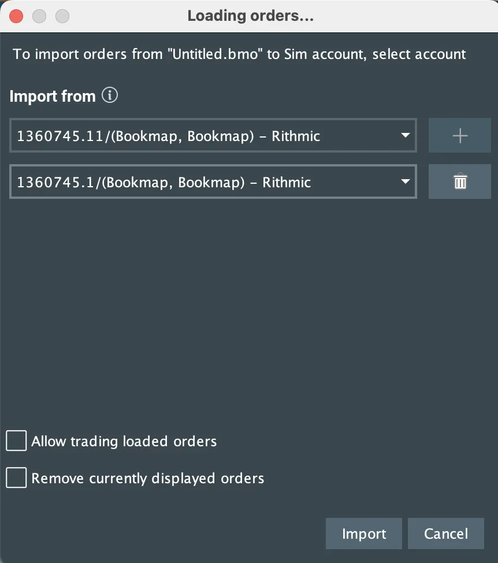
Replay mode provides similar options to Simulation mode, with additional controls:
- Users can select one or more source accounts. Orders from all selected accounts are imported into the same simulation account.
- Remove currently displayed orders - users can choose it before importing.
- Allow trading loaded orders checkbox:
- Enabled:
- Imported orders can be executed and can be edited during replay. Users may modify the order's price level and quantity.
- Only orders with timestamps earlier than or equal to the relative time of the feed file are imported.
- Orders do not reappear when the feed file is rewound or restarted.
- Disabled:
- Imported orders can be executed but cannot be edited (price level and quantity are read-only).
- These orders reappear when the feed file is rewound or restarted.
- Enabled:
Add at the end of the section
Share Bookmap Files Using a Direct Link
You can host a Bookmap feed (.bmf) or workspace (.bmw) file online and share a link that opens it directly in Bookmap.
- Upload the file to your server or cloud storage and obtain a direct download link.
- The link must download the file immediately (no redirects).
- The link must point to the actual file and end with
.bmfor.bmw. Query parameters are acceptable.
- Verify the link by opening it in a browser. If the download starts immediately, it is valid.
- Replace
https://in the link withbookmap://. - Share the resulting link. Opening it will launch the file directly in Bookmap.
Example:
bookmap://example.com/feed.bmf
bookmap://example.com/workspace.bmw
Share Feed and Order Files Using a Direct Link
You can host a Bookmap feed file (.bmf) and one or more order files (.bmo) online and share a single link that opens them together in Bookmap.
- Upload the .bmf file and the .bmo file(s) according to the rules described in the section above (direct download links, no redirects).
- Create a Bookmap link in the following format:
bookmap://example.com/[FEED_FILENAME].bmf?orders=[ORDER_FILENAME_1].bmo,[ORDER_FILENAME_2].bmo
- Share the link. Opening it will automatically load the feed and the specified order file(s) in Bookmap.