DOM Pro
What Is the DOM Pro?
The Depth of Market (DOM) Pro add-on provides a single-click order entry interface, as well as displaying market depth against recent trades in real-time, all aggregated into a split volume profile.
The price display and Last Traded Quantity (LTQ) give you a visual sense of a market’s movement and order flow events, either over a set period of time or relative to other markets.
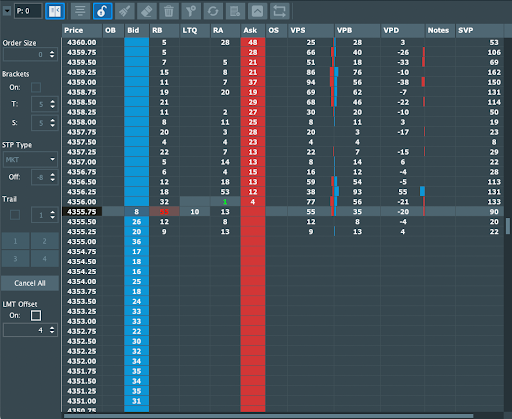
The price ladder gives you the confidence to enter an order at a specific and precise price level. Meanwhile, the intuitive design of the displayed traded volume allows you to manage your working orders and positions based on easily identifiable order flow events.
How It Works
Orders management
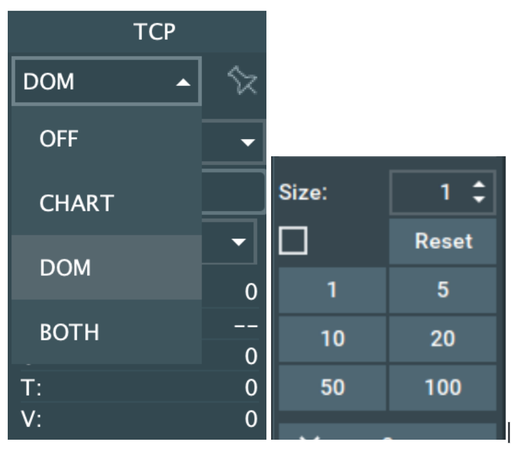
To start trading with the DOM Pro add-on, you need to use the Trade Control Panel (TCP) to select either the DOM or BOTH options. Then, you need to set your preferred order size or bracket settings.
Sending orders
Orders can be sent from the Bid or Ask columns.
-
To send a LIMIT order, left-click on the Bid or Ask column. Note that if you place a buy order on the Ask side or a sell order on the Bid side, it will be executed immediately.
-
To send a STOP LIMIT order, right-click on the Bid or Ask column. It's important to note that orders with the wrong side will typically be rejected by the exchange.
Therefore, it's important to ensure that you place your orders on the correct side to avoid unintended order execution.
Moving and Canceling Orders
To move or cancel orders, you can use the OB (Order Buy) or OS (Order Sell) columns.
-
To move all orders on a price level, left-click and hold the OB or OS column on that price level, then drag and drop it to a new price.
-
To move a single order from a level containing multiple orders, middle/scroll button click on the order to select one order from that level.
-
To cancel all orders on a price level, right-click on the OB or OS column on that level. Note that it is not possible to cancel a single order from a price level.
Order Resizing
It is not possible to resize orders using the DOM Pro add-on. However, you can still use the Heatmap to resize your orders.
Columns

- Price: The prices column, it displays the current price of the instrument.
- OB: Displays your open orders on the bid side.
- Bid: Displays the quantity of buy limit contracts at each price level.
- RB: Displays the volume of recent bid trades.
- LTQ: Displays the Last Traded Quantity in contracts.
- RA: Displays the volume of recent ask trades.
- ASK: Displays the quantity of sell limit contracts at each price level.
- OS: Displays your open orders on the ask side.
- PIQ: Displays your Position In Queue, showing how many contracts are in front of your order at the given price. This feature requires MBO data and will work for Rithmic MBO instruments only. Sim and Replay modes are supported too, where the add-on will simulate the behavior of the real order in the queue. Real trading with Paper account (simulation on the exchange side) is not yet supported.
- VPS: Displays the Volume Profile Sell, which is the volume traded since the instrument was opened or the session started.
- VPB: Displays the Volume Profile Buy, which is the volume traded since the instrument was opened or the session started.
- VPD: Displays the Delta of VPS and VPB columns.
- Notes: Allows for manual entry of notes by double-clicking in the column or import through an Excel file (.csv).
- SVP: Displays the Sum of VPS and VPB columns.
Buttons

- Pop-up Menu: Duplicates all menu buttons in case the DOM width is set narrower than the default width.
- Net Position: Displays the current net position size, with a green background for long positions and a red background for short positions.
- DOM TCP: Opens or closes the DOM TCP, which is a copy of the standard Bookmap TCP configuration that cannot be modified.
- Recenter DOM: Recenters the DOM to the current trading price.
- Enable Trading: Displays the status of your Bookmap TCP activation mode.
- Clear Recent Trades: Clears the Recent Bid (RB) and Recent Ask (RA) columns.
- Clear Volume Profile: Clears the Volume Profile Sell (VPS) and Volume Profile Buy (VPB) columns.
- Clear All Volumes: Clears all volume columns except for the Session Volume Profile (SVP).
- Clear Session Volume Profile: Clears the Session Volume Profile (SVP).
- Import Notes: Allows you to import notes with the same format as Bookmap Notes.
- Clear All Notes: Clears all notes.
- Always On Top: Toggles the DOM window to always stay on top.
- Auto Recenter: Automatically recenters the DOM based on the Recenter Ticks in the DOM Pro settings.
How to Configure the DOM Pro Add-on?
Main Settings
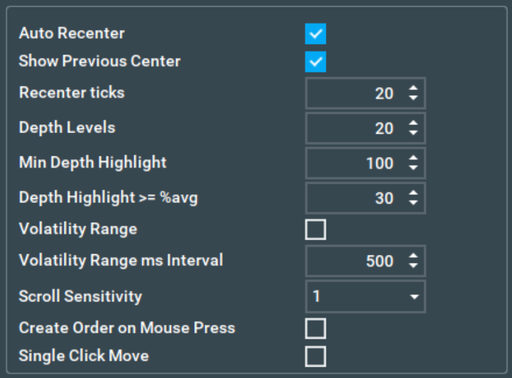
- Auto Recenter: Enables automatic recentering of the DOM.
- Show Previous Center: Displays a line on the price where the DOM was previously centered.
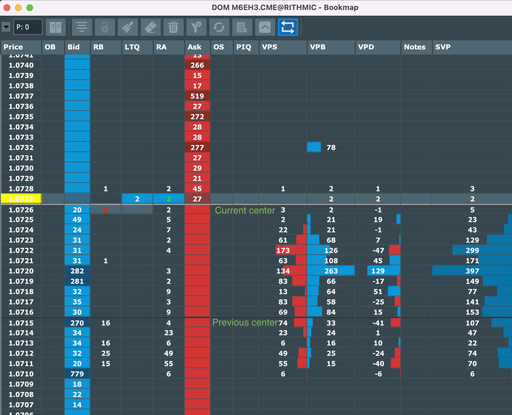
- Recenter Ticks: Specifies the distance in ticks for the DOM to automatically recenter around the DOM's new center.
- Depth Levels: Determines the number of ticks to be displayed in the DOM.
- Min Depth Highlight: Sets the minimum size to be highlighted in the Bid/Ask column.
- Depth Highlight >= % Avg: Highlights levels in the Bid/Ask column where the resting size is X% higher or equal to the average visible depth.
- Volatility Range: Updates the volatility range by highlighting RB/RA cells based on each interval (configured in settings).

- Volatility Range ms Interval: Sets the interval in milliseconds for the volatility range to fade.
- Use Theo Price: Calculates the breakeven price level in your overall position.
- Scroll Sensitivity: Increases sensitivity to increase your DOM scrolling speed.
- Create Order on Mouse Press: Determines when orders are created. If this feature is disabled, the order is created on the mouse up action.
- Single Click Move: With this feature, users can only have one active order per side per order type, which greatly increases order movement speed. A maximum of four active orders are allowed: Buy Limit, Sell Limit, Buy Stop, and Sell Stop. For example, if you already have an open order and you open another one with the same side and type, the first order will be moved to the new price.
Reset Options
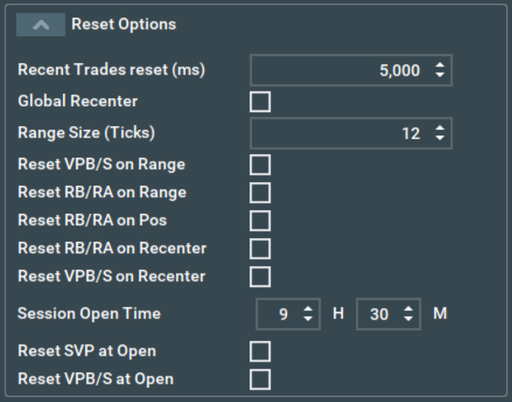
- Recent Trades reset ms: This is a reset timer in milliseconds that will reset the most recent trades quantity of executed contracts at a particular level to zero. If the level trades within the time interval it will accumulate the total
- Global Recenter: When enabled on the master DOM, all other DOMs will recenter when clicking on the recenter button of the master DOM. Only the main DOM that is being used to execute trades needs to have this enabled (if you use different auto recenter tick values on different instruments the other DOMs will switch to match the master DOM)
- Range Size (in Ticks): Calculates and resets the Volume Profile (VP) to zero once your Range size setting is exceeded
- Reset VPB/S on Range: Uses the above range setting to reset the VPB/S values
- Reset RB/RA on Range: This value is the quantity of ticks used to reset the RT columns while using the Range setting
- Reset RB/RA on Pos: Reset the RT columns based on a new trade position from flat
- Recenter on Pos Open: Recenter the DOM PRO when a position starts
- Reset RB/RA on Recenter: Reset the RT columns based on when any recenter is detected
- Session Open Time: The time at which you started your DOM trading session
- Reset SVP at Open: Resets the main session Volume Profile at the Session Open Time (the open time is defined by Session Open Time value)
- Reset VPB/S at Open: Resets the split profile at the Session Open Time (the open time is defined by Session Open Time value)
Graphics
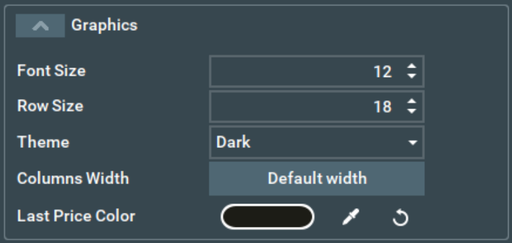
- Font Size: Size of text in the DOM column
- Row Size: Size of column height
- Theme: Select a dark or light color theme
- Last Price Color: Configures the background color for the Last Price cell in the Price column
LMT Offset
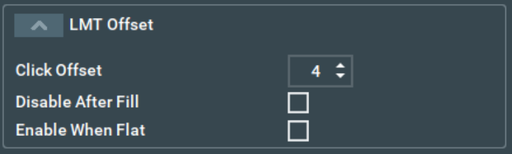
The offset value function will become available once the check box on the DOM TCP is enabled.
- Click Offset: This designates the quantity of ticks away from the position of your mouse click on the DOM where an order will be submitted
- Disable After Fill: This Disables the LMT Offset feature after the order that was submitted with the offset has been filled
- Enable When Flat: Re-enables the order offset calculation when the current position is flat
Visible Columns
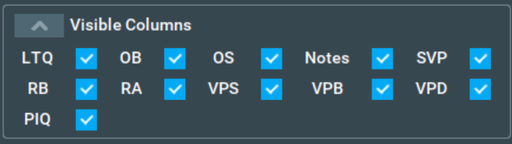
The Visible Columns feature allows you to choose which columns to keep visible and which ones to disable, ensuring that you have a customized view of the DOM that meets your specific trading needs.
Shortcuts Configuration
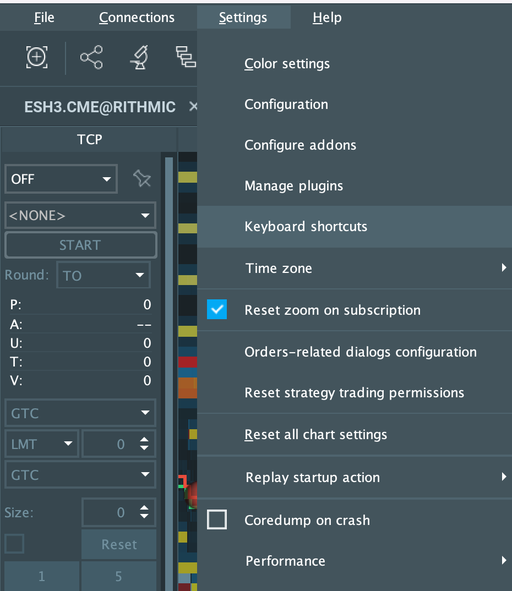
DOM Pro shortcuts can be configured via Bookmap Shortcuts Settings. These can be found in Settings –> Keyboard shortcuts menu.
In the Keyboard shortcuts window, shortcuts can be configured. Go to Addons –> DOM Pro –> Recenter. Double clicking on an item will let you setup a specific shortcut for a chosen action.
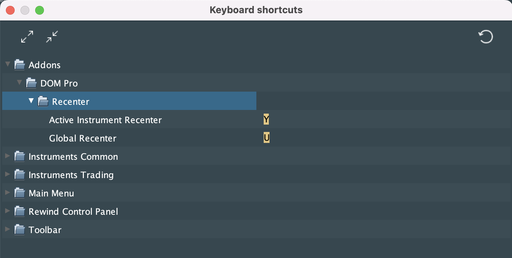
- Active Instrument Recenter: this triggers a recenter action upon the pressing a shortcut button in so long as the DOM Pro window is in focus.
- Global Recenter: triggers a recenter action on shortcut press in all DOM Pro windows
DOM Pro FAQ
Do I need to have both DOM Pro and Execution Pro, or can I use DOM Pro by itself?
You can trade using only the DOM Pro add-on. Execution Pro is optional, but is definitely recommended as it will extend your trading tools.
Why can't I place an order in DOM Pro?
You need to select 'DOM' or 'Both' on the Bookmap TCP, and then set the order size to at least 1 to enable trading.
Why can't I configure the Order Size in DOM Pro?
Size configuration is done on the Bookmap TCP, and carries over to DOM Pro.
What platforms/connections are supported by DOM Pro?
There are several platforms that are supported: Rithmic, CQG, Binance and Binance Futures. All other platforms are supported in Sim or Replay mode, but not in live trading.
How can I move my orders in the DOM Pro?
You can move your orders directly in the DOM Pro by left-clicking and dragging. You can also use Move limits shortcuts from the Execution Pro add-on when using both add-ons.
I have a long position and bracket orders enabled, why didn't my bracket order work after sending a short order?
This behavior is by design to avoid multiple opened brackets. This is in order to prevent unnecessary brackets on the ask side when a long position is opened.
Connecting to Unsupported Exchanges and Instruments
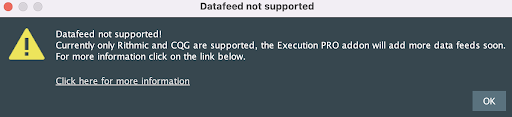
If you enable the add-on for an instrument that is not supported, you will get the following message and the add-on will not be enabled.
How to Install the DOM Pro Add-on?
Please note that the DOM Pro add-on may encounter the following bugs and issues:
- PIQ: The "PIQ" feature is still in development and may show inaccurate values in both real and simulated trading modes. We are working on improving this feature and appreciate your patience as we address these issues.
The latest version of the DOM Pro add-on requires the latest build of Bookmap 7.4 b9 or higher. Bookmap 7.4 has a new way of installing add-ons. For more information, please visit this page.
To install the DOM Pro add-on, simply get Bookmap 7.4 and install it from the Add-ons Manager.