Multi-Account Trading
What Is the Multi-Account Trading add-on?
Multi-Account Trading is an add-on designed to enhance your trading efficiency by synchronizing activities across multiple accounts. Tailored for traders managing primary and sub-accounts, this tool ensures that your trading strategies are easily and precisely executed across all accounts.
Key Features:
-
Trade Synchronization: Automatically copy trades from your primary account to designated sub-accounts. This includes functionalities such as sending new orders, canceling existing ones, updating order prices, and resizing orders seamlessly across all linked accounts.
-
Comprehensive Monitoring: Stay informed with real-time insights into each account's status. View detailed information on current positions, active (working) orders, and executions, ensuring you have complete visibility and control over your trading activities.
-
Automated Management: Reduce manual intervention with automated processes that handle trade replication and account monitoring, allowing you to focus on strategy and decision-making.
How It Works
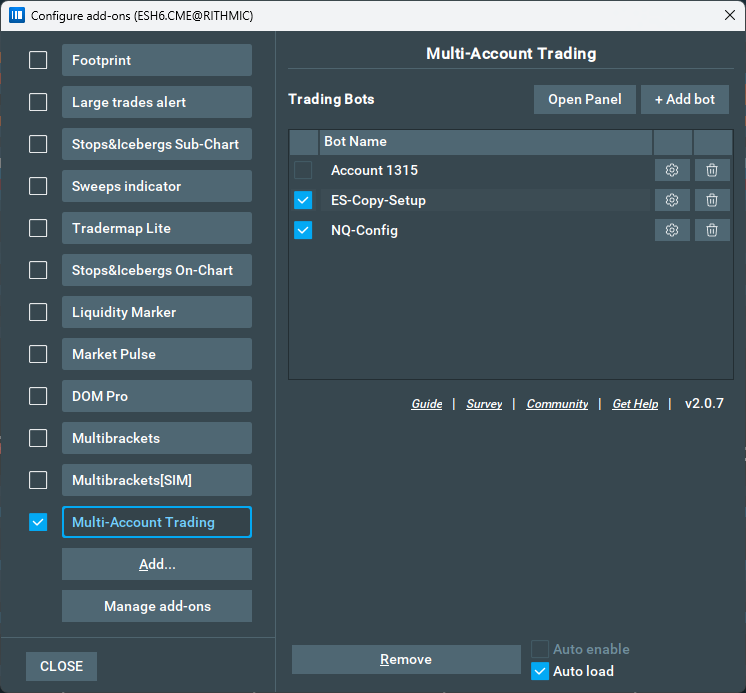
Currently, this add-on works only in Live mode and when connected to Rithmic with a Login that supports multiple accounts.
Configuring the add-on
To start trading with the Multi-Account Trading Add-on the first step is to configure a “Trading Bot” which will hold the information about your primary account and sub-accounts where you want to replicate the trading actions. To configure a bot click on the “Add Bot” button, and a configuration window will appear:
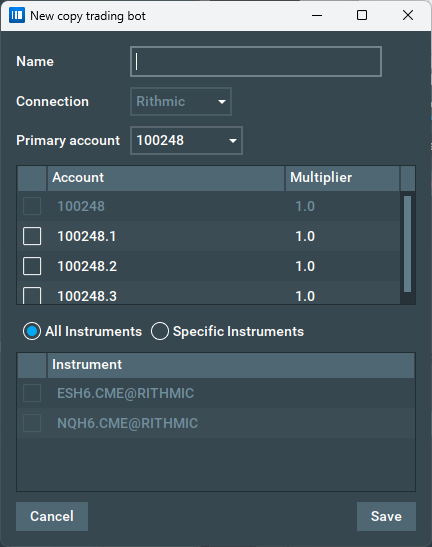
The Primary account will match the account you selected when connecting to the Rithmic adapter. The other fields are described below:
-
Name: The Trading Bot name that will be displayed.
-
Connection: List of supported connections. For now, only Rithmic will be displayed.
-
Primary Account: Connected account to Rithmic.
-
Instruments: Define which instruments this bot will manage. You can choose "All Instruments" or select specific ones (e.g., ES, NQ). This allows you to have different bot configurations for different instruments.
-
Accounts Table: List of any sub-accounts attached to the primary account, in the example above 100248.1 and 100248.2 are sub-accounts of 100248.
-
Multiplier: Can be used to multiply the primary order size into the sub-account. For example if you set multiplier 2 for one of the sub-accounts when we place an order of size 5 the add-on will send an order of size 10 to the sub-account. The multiplier accepted values are from 0.1 to 100.0 and the add-on will round the result if needed using the following rule:
Rounding mode to round towards "nearest neighbor" unless both neighbors are equidistant, in which case round up.
Once a configuration is set up, we can click "Save" to store it:
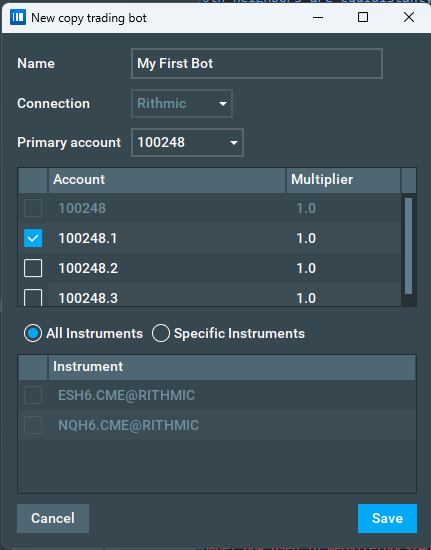
After that, the Add-on settings window will be updated and show the newly added Bot.
To activate a trading bot simply click on the checkbox near the Bot name (In the example below we are enabling the Bot named “My First Bot”):
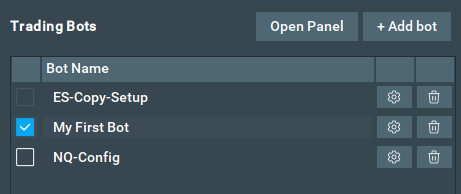
Starting on Bookmap 7.7+ multiple bots can be configured and enabled at the same time, as long as their configurations do not conflict with each other, for example, if two bots have the same primary account and are setup to All Instruments, only one of them can be enabled at the same time.
The add-on also has a Trading Management window that is automatically loaded when the add-on starts, the window can be closed by clicking on the “X” button and can be re-opened by clicking on the “Open” button in the settings panel.
Starting with version 2.0.8, you can also enable, disable, or edit your bots directly from this window.
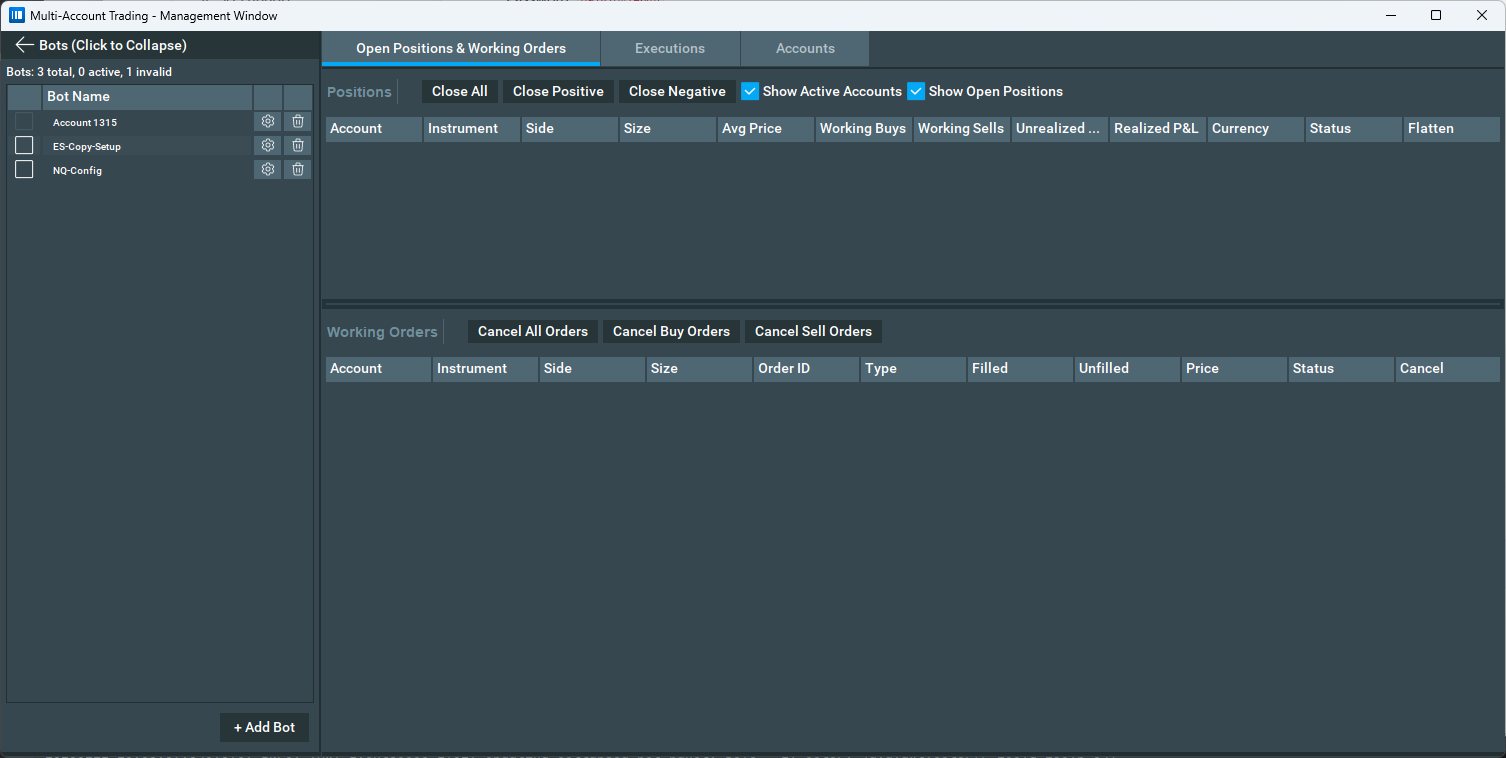
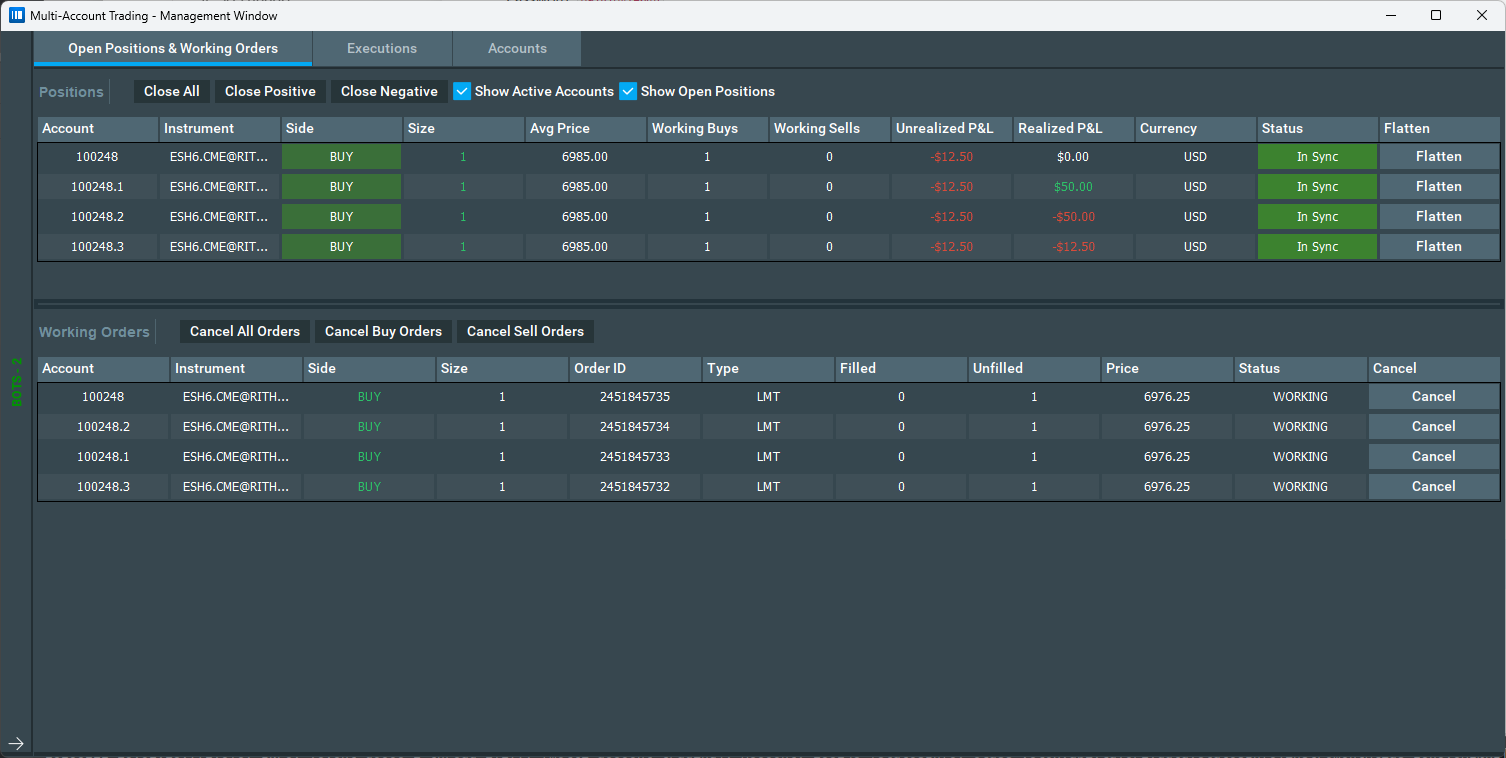
The Trading Management Window provides insights about our positions, working orders, executions, and connected accounts. It also provides buttons for quick actions:
Bots:
- Enable/Disable: Toggle the bot's status directly.
- Edit: Modify the bot's configuration.
Open Positions:
- Close All: Flatten all open positions.
- Close Position: Flatten all open positions with positive unrealized P&L.
- Close Negative: Flatten all open positions with negative unrealized P&L.
Working Orders:
- Cancel All Orders
- Cancel Buy Orders
- Cancel Sell Orders
Accounts: The Accounts tab displays essential information for all linked accounts, including:
- Balance: The current balance of the account.
- PnL: Realized Profit and Loss.
- Unrealized PnL: Current open profit and loss.
Placing orders
With our trading Bot enabled, simply configure the Bookmap Trading Control Panel with your order size and place an order, e.g: Limit Order size 1 at 5696.25:
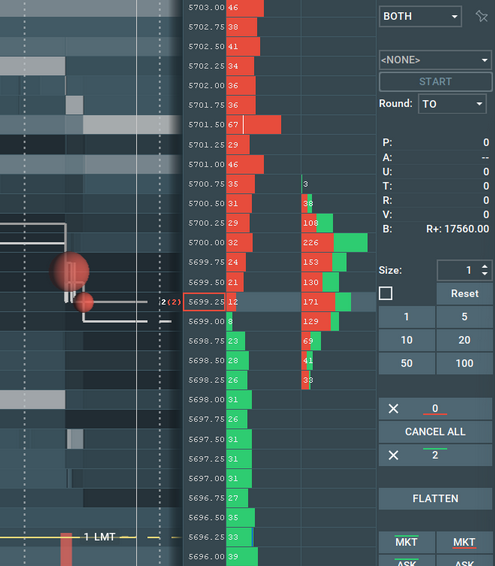
The Trading Management window will display the actions on all accounts and will show the same order replicated to the sub-account configured in our bot:

Any action to the main order will be replicated to the sub-orders, for example, let's resize the order from 1 to 8:
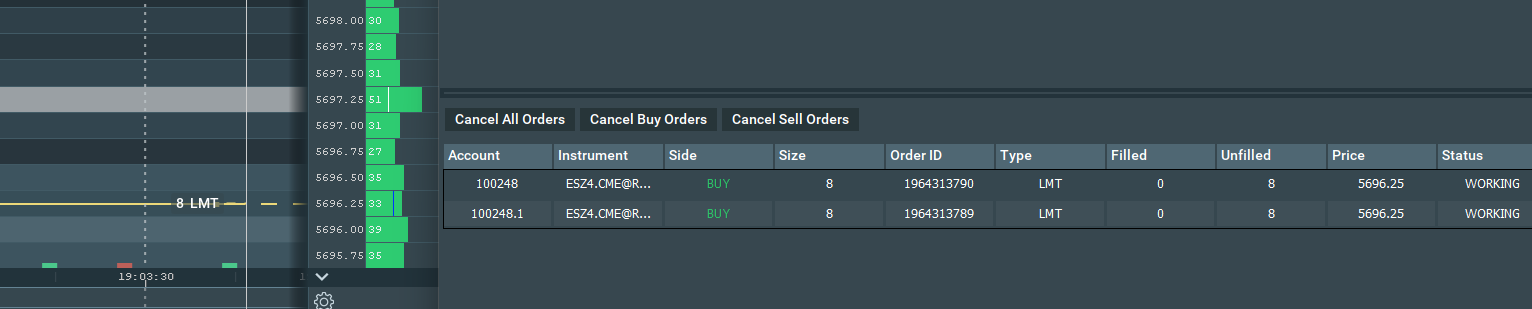
Canceling or moving the order will also replicate to the sub-account.
Monitoring positions
If we start a position, the Trading Management Window will display our position status across all configured accounts in the active trading bot:

The Executions tab will display all execution details on all accounts in the active bot:

Multi-Account Trading FAQ
Which Bookmap version is supported?
Multi-Account Trading is available on Bookmap version 7.6 or higher. Note that multi-bot and per-instrument configurations require Bookmap version 7.7 or higher.
What platforms/connections are supported?
At this time, only Rithmic connections are supported for Multi-Account Trading.
What order types are supported?
All order types are fully supported.
How Bracket Order Matching Works
When you move or cancel a bracket order (Take Profit or Stop Loss) on your master account, the system automatically applies the same action to all your sub-accounts.
What gets moved together: All bracket orders within the same tier are treated as a group. If your sub-accounts have larger position sizes (due to multipliers) and received more partial fills than your master account, all of those partial fill brackets move together to the new price — keeping everything in sync.
Multi-bracket tiers stay independent: If you have multiple TP levels (e.g., TP1, TP2, TP3), moving TP1 only moves TP1 across all accounts. TP2 and TP3 stay exactly where they are.
What if an account is missing a bracket? If a sub-account is missing a bracket tier that other accounts have (for example, due to a connection issue or manual cancellation), the system will log a warning and skip that account while still moving the bracket on all other accounts. You can then manually manage the affected account.
Note on position sizes and multipliers: Sub-accounts configured with a size multiplier will have proportionally larger positions and may have more partial fill orders than the master. The matching logic handles this automatically — you don't need to do anything differently.
Is crosstrading supported?
Yes. The target instrument must be subscribed on Bookmap otherwise there is no way for the addon to track it. For example, if crosstrading ES into MES you need to subscribe to both ES and MES.
What is required for cross-trading to work with the add-on?
When using cross-trading, the account selected in the Trading Control Panel (TCP) for the instrument being traded must match the primary account configured in your active bot. If there is a mismatch, the add-on will not be able to synchronize actions such as resizing, moving, or canceling orders across sub-accounts.
Which Bookmap modes are supported?
Only Live mode.
Known Issues
Reloading/Enabling add-on when sub-account(s) have working orders
When sub-account(s) have working orders and you reload/enable the add-on, the add-on will not be able to manage these existing orders. You must manually close or manage them. Any orders placed after the add-on is enabled and a trading Bot is activated will be managed correctly by the add-on.
Cross trading
Currently if you are using cross trading with Multi Account Trading Add-on and you want to disconnect from Rithmic and connect again with a different account you must unload the add-on before disconnecting and load again after you switch your accounts.
If cross-trading between two different providers (e.g. BookmapData into Rithmic), there must be subscriptions to both instruments of the cross-trading pair on Bookmap.
How to Install the Multi-Account Trading Add-on
You need to have Bookmap 7.6.0.7+. You can download it by these links:
- For Windows - https://bookmap.com/current/alpha
- For Mac x64 - https://bookmap.com/current/alpha/mac
- For Mac M1/M2/M3/M4 - https://bookmap.com/current/alpha/m1
- For Linux - https://bookmap.com/current/alpha/linux
The add-on is available to install from the Add-ons Manager.