Trade Impact
What Is the Trade Impact Indicator?
Trade Impact is an on-chart indicator that shows large aggressive trades together with the passive liquidity they hit.
All fills of one aggressive order make one tape, even when the order sweeps several price levels. When a tape is large, Trade Impact adds an icon to the chart. The icon shows whether the tape hit many small resting orders, a few bigger resting orders, or a large resting order.
Trade Impact uses MBO (Market by Order) data to see which resting orders each trade hit.
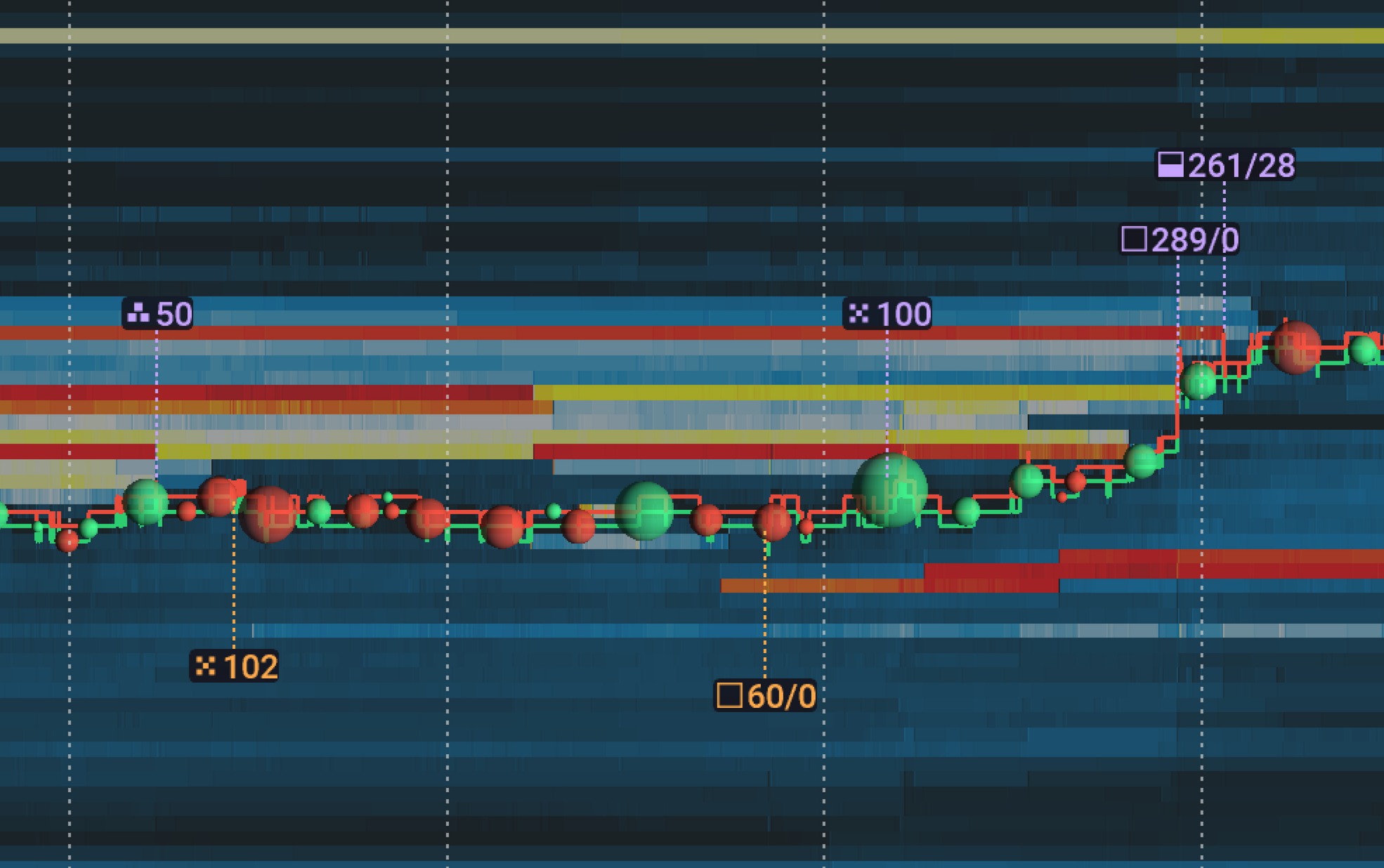
Reading the chart
Tape classes
Each tape gets one of four classes, depending on the resting orders it hit. The glyph on the icon indicates the class.
A large order is a resting order whose size before the tape was at or above the “Large order threshold” (see Configuration).
| Glyph | Class | The tape hit |
|---|---|---|
 | Fragmented | Many resting orders, none of them a large order. |
 | Concentrated | A few resting orders, none of them a large order. |
 | Large order survived | A large order, and the order still had some size left after the tape. |
 | Large order consumed | A large order, and the tape filled it completely. |
Large orders take priority: if a tape hit at least one large order, it gets a large order class, no matter how many other resting orders it hit. The Large order survived glyph also shows how much of the large order is left. The fuller the square, the more size the large order still has.
You can control the thresholds between many and few resting orders, and between small and large resting orders, in the Configuration section.
Icons
The color and the position of the icon show the side of the aggressive order:
- Buy: a violet icon above the price of the tape.
- Sell: an orange icon below the price of the tape.
A dashed offset line connects the icon to the place on the chart where the tape happened. You can change the colors in the Visual settings.
The number next to the glyph is the volume of the tape. On large order icons, the number after the slash is the size of the large order that is left after the tape. In the example below, the left icon consumed its large order, so its remaining size is 0. The right icon left 28 contracts of its large order.

Merged icons
If several icons of the same side are close to each other, only one icon with an aggregated total volume for all of them will be shown on the chart. The merged icon shows the glyph of its most important tape: the tape that hit the largest large order or, if no tape hit a large order, the tape with the largest volume.
Zoom in to see the separate icons. The “Horizontal aggregation” and “Vertical aggregation” sliders set how close the icons must be to merge.
Hover details
Hover over an icon to see its details. The title shows the class and the side of the tape, for example Fragmented · Sell.
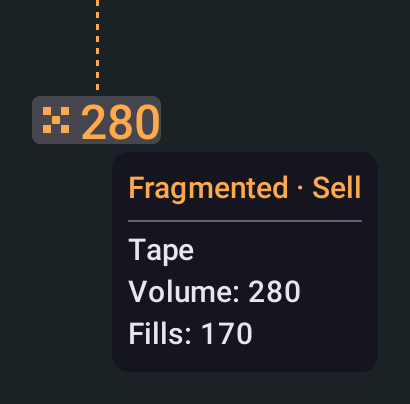
The Tape section describes the aggressive order:
| Row | Meaning |
|---|---|
| Volume | The volume of the tape. |
| Fills | The number of fills in the tape. |
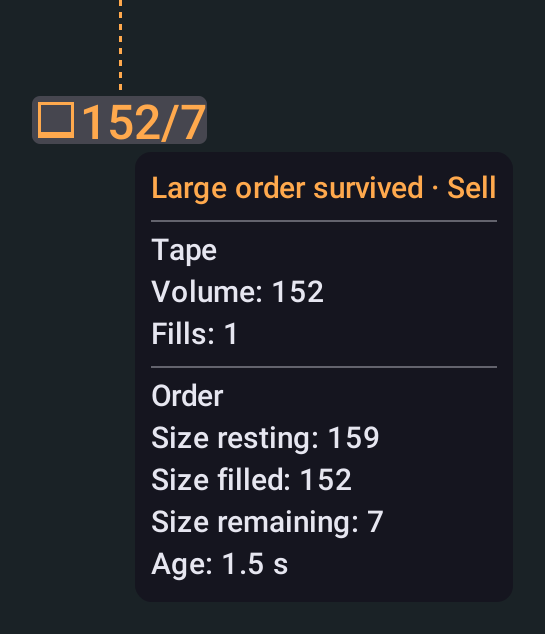
Large order icons also have an Order section that describes the large order:
| Row | Meaning |
|---|---|
| Size resting | The known size of the large order: its volume filled across its lifetime plus the size that is left. |
| Size filled | The volume that this tape filled from the large order. |
| Size remaining | The size of the large order that is left after the tape. |
| Age | The time from the placement of the large order to the last fill of the tape. It is shown only when the placement time is known. |
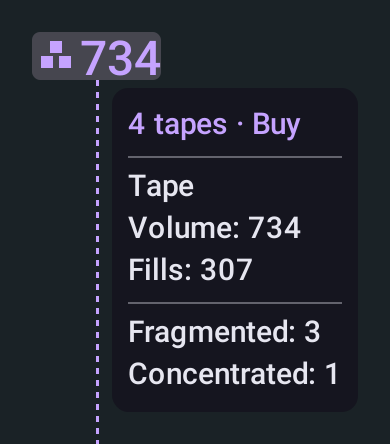
The title of a merged icon shows the number of merged tapes, for example 4 tapes · Buy.
The Tape section shows the sums over all merged tapes.
The Order section describes the large order of the tape whose glyph the icon shows.
The last section shows how many tapes of each class were merged into the icon.
Configuration
You can configure the Trade Impact detection settings separately for each instrument.
In Bookmap, open Configure add-ons and select Trade Impact.
While Trade Impact is disabled for the instrument, the panel shows a short preview with useful links.
Click “Activate” to turn Trade Impact on for the instrument, and “Deactivate” to turn it off.
Or use the checkbox next to the Trade Impact button.
The settings items are disabled while Trade Impact is off.
Detection settings
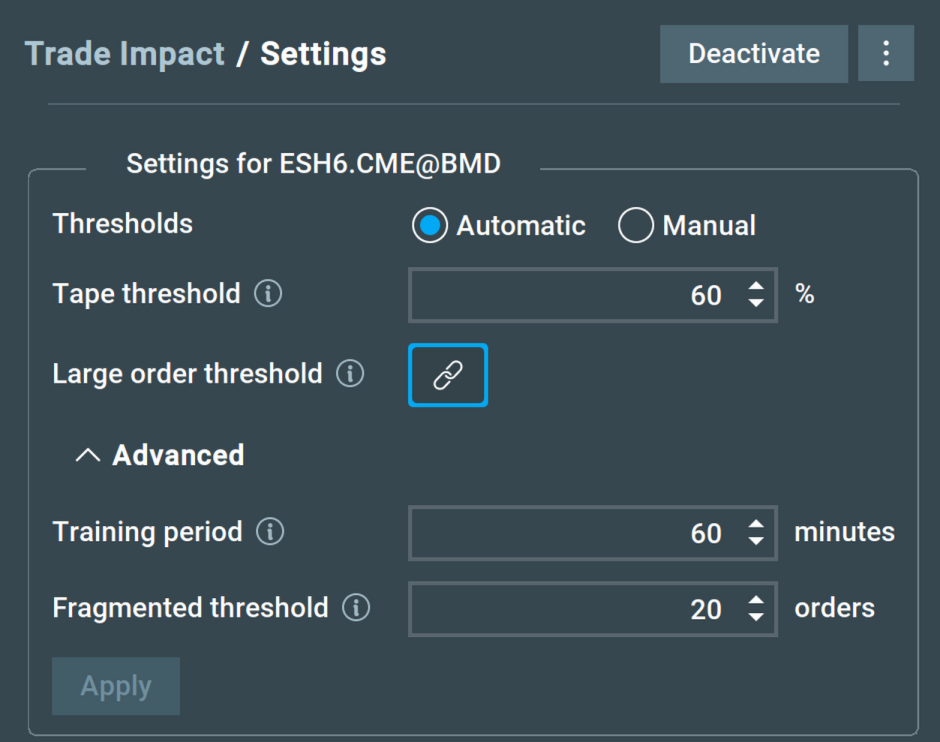
The “Settings for <instrument>” panel holds the detection settings. Changes take effect after you click “Apply”. Trade Impact then recalculates the icons on the whole chart, history included.
Thresholds
The thresholds decide which tapes get an icon and which resting orders count as large orders.
In Automatic mode, Trade Impact adapts to market activity in the training period.
The higher the threshold, the fewer icons you will see on the chart,
and the more meaningful they are compared to the activity in the training period.
In Manual mode, you enter the thresholds in contracts.
| Setting | Default | Description |
|---|---|---|
| “Thresholds” | Automatic | In Automatic mode, the thresholds are relative to the recent market activity. Manual lets you enter them in contracts. |
| “Tape threshold” | 60 % or 150 contracts | The minimum tape volume to show an icon. A higher value shows only the largest tapes. |
| “Large order threshold” | 60 % or 25 contracts | The minimum size of a resting order to count as a large order. In Automatic mode, the link button is on by default, and the large order threshold uses the tape threshold value. Turn the link off to set its own value. |
Advanced settings
Click “Advanced” to show more settings.
| Setting | Default | Description |
|---|---|---|
| “Training period” | 60 minutes | Automatic mode only. How much recent market activity the automatic thresholds learn from. |
| “Fragmented threshold” | 20 orders | The maximum number of resting orders a Concentrated tape can hit. A tape that hit more resting orders is Fragmented. |
Visual settings
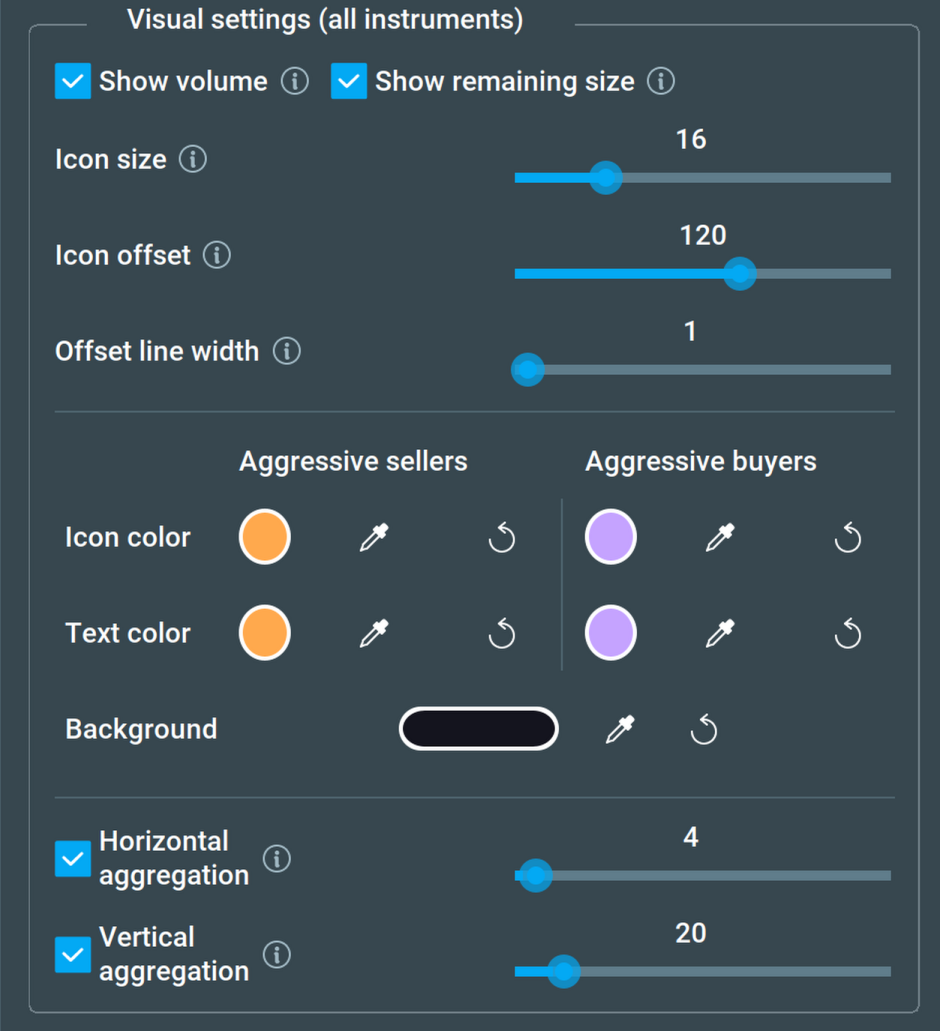
The visual settings of Trade Impact are the same across all instruments it is added to. They are grouped in the “Visual settings (all instruments)” panel. Unlike the detection settings, a change is applied to the icons automatically.
| Setting | Default | Description |
|---|---|---|
| “Show volume” | On | Shows the tape volume next to the glyph. |
| “Show remaining size” | On | Shows the size that is left of the large order after the volume, on large order icons. Available only while “Show volume” is on. |
| “Icon color” | Violet for buyers, orange for sellers | The color of the glyphs of aggressive buyers and aggressive sellers. |
| “Text color” | Violet for buyers, orange for sellers | The color of the numbers on the icons. |
| “Background” | Near black | The background color of the icons and their details. |
| “Icon size” | 16 px | The size of the icons. |
| “Icon offset” | 120 px | The distance between the tape and its icon. |
| “Offset line width” | 1 px | The width of the line that connects the icon to the tape. |
| “Horizontal aggregation” | 4 px | The minimal horizontal distance between the icons at which they start aggregating. |
| “Vertical aggregation” | 20 px | The minimal vertical distance between the icons at which they start aggregating. |
Disabling of both Horizontal and Vertical aggregations is possible. Please note that it may result in too many icons on the chart, which may make them unreadable and cause performance issues. For this reason we do not recommend disabling this feature, especially with large amounts of data.
Notes
-
Trade Impact supports any instrument with MBO data. If the instrument has no MBO data, the settings panel shows the message “This instrument has no MBO data. Trade Impact will show nothing on this chart.”
-
Trade Impact relies on the microstructure of the market data you receive. Even with the same instrument, data connections can send it with small differences. As a result, you may see different icons with different data connections.
-
When Bookmap is under heavy load, its automatic data aggregation can merge several events into one. Trade Impact cannot see the separate orders in the aggregated data, so some icons may be missing or differ from real-time data. See Data Aggregation to learn how to change this setting.
-
CME does not provide MBO data for implied orders. Read more about implied orders here.
-
The volume traded during a short time frame is different between instruments, and on the same instrument at different times. So if you set the thresholds manually, you may need to adjust them.
-
Need help? Join our Discord channel, or contact us at support@bookmap.com.
Trade Impact FAQ
I do not see any icons. How can I check that the indicator works?
Make sure that the instrument has MBO data. Without it, the settings panel shows a message, and Trade Impact shows nothing on the chart.
Icons are shown only for tapes larger than the tape threshold. If you see trades and still do not see any Trade Impact icons, go to your Trade Impact configuration and set a smaller “Tape threshold”.
If this doesn’t work, disable all other add-ons and then go to the visual components and hide all chart elements. If this does not fix the problem, please contact us at support@bookmap.com or via our Discord channel.
Do the settings apply to one instrument or all of them?
The detection settings apply to one instrument. You can configure them for each instrument separately. The visual settings apply to all instruments.
How can I reset the visual settings?
The visual settings apply to all instruments, so a reset of the chart settings of one instrument does not change them. To reset them, open the Settings menu and select “Reset all chart settings”. This also resets the Trade Impact detection settings of all instruments and the other chart settings, such as zoom levels. Trade Impact turns off when an instrument is reset, so click “Activate” to turn it on again for each instrument you need. See Settings Menu for more information.
To reset only one color, click the reset button next to it.
Is Trade Impact part of Bookmap, or will it be an additional purchase?
Trade Impact is a paid add-on.
Installation
The latest version of Trade Impact requires Bookmap 7.8 b13 or higher. For more information about installing add-ons, please visit this page.
To install Trade Impact, simply get Bookmap and install it from the Add-ons Manager.